Yellow Screen - Online Full Yellow Screen Tool
Use this Yellow Screen tool to instantly turn your display into a full yellow background. A full yellow screen is useful for checking yellow tint, screen color temperature, white balance, OLED color uniformity, panel aging, blue light filter behavior, yellow light effects, reading light, warm photography lighting, and screen troubleshooting.
What Can a Yellow Screen Detect?
A yellow screen is especially useful for finding warm color shifts, yellow tint, uneven white balance, and display aging. Unlike black, white, red, green, or blue screens, yellow combines red and green light while reducing blue. That makes it useful for noticing whether a screen looks too warm, too yellow, too green, or too dull.
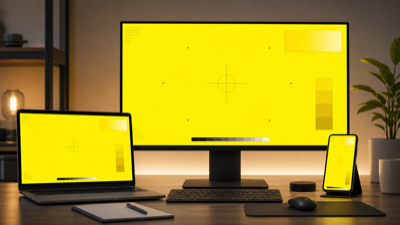
A full yellow screen helps reveal warm tint, white balance shifts, blue light filter behavior, and uneven OLED aging.
1. Yellow Tint and Yellowish Screen Problems
The most important use of a yellow screen is checking whether your display already looks too yellow or too warm.
A screen may look yellow because of:
- Night Shift
- Night Light
- True Tone
- Eye Comfort mode
- Reading mode
- Blue light filter
- Warm color temperature settings
- Display aging
- Panel quality differences
- Incorrect color profile
Example: If your document background looks yellowish when you open a document, first check whether Night Shift, Night Light, True Tone, or a blue light filter is enabled. If the screen still looks yellow after turning those off, it may be a color profile, panel uniformity, or aging issue.
2. White Balance and Color Temperature Problems
A yellow screen helps you compare warm and cool areas across the display. It is useful for detecting color temperature inconsistency.
Look for:
- One side appearing more yellow
- One side appearing greenish
- The top looking warmer than the bottom
- The center looking normal but the edges looking dull
- Yellow looking orange or brown in some areas
Example: If a laptop screen shows warm yellow on the left side and pale yellow on the right side, the screen may have white balance or color uniformity issues.
3. OLED Color Uniformity and Aging
OLED and AMOLED screens can age unevenly. Yellow screen testing can reveal color shifts that may not be obvious on white or black backgrounds.
A yellow screen can reveal:
- Green tint
- Pink tint
- Uneven warm areas
- Status bar marks
- Navigation bar retention
- App interface shadows
- Uneven OLED aging
Example: An older OLED phone may show a slightly greenish area near the top or a darker navigation bar region when viewed on a yellow background.
4. Blue Light Filter and Eye Comfort Mode Behavior
Many devices intentionally make the screen warmer to reduce blue light. A yellow screen can help you quickly compare whether these features are active.
Common features include:
- Night Shift on iPhone and Mac
- Night Light on Windows
- Eye Comfort mode on Android phones
- Reading Mode on some devices
- Blue light filter apps
Example: Turn Night Light on and off while viewing the yellow screen. If the screen becomes much warmer when it is on, the blue light filter is working.
5. Display Aging, Dimming, and Yellow Dim Screen Issues
Old screens can become dimmer, warmer, or less color accurate over time. A yellow dim screen may indicate aging, low brightness, power-saving mode, or a color setting issue.
Possible signs:
- Yellow looks dull instead of bright
- The screen looks dim even at high brightness
- One area looks darker than the rest
- The display appears yellowish in documents and webpages
- Warm tint remains even after disabling software filters
Example: A used laptop may look acceptable during normal browsing, but a yellow screen may reveal uneven dimming or a warm aged panel.
Which Devices Are Best for Yellow Screen Testing?
Yellow screen testing works on almost any display, but it is especially useful for these devices.
1. iPhone and iPad
iPhones and iPads often use features like True Tone and Night Shift. These features can make the screen appear warmer or yellowish.
A yellow screen can help check:
- True Tone behavior
- Night Shift settings
- OLED color uniformity
- Display replacement quality
- Warm tint complaints
Example: If your iPhone screen looks yellow compared with another iPhone, open a yellow screen and turn True Tone and Night Shift off before judging the display.
2. MacBook and Mac Displays
MacBooks can appear yellow because of True Tone, Night Shift, color profiles, or panel variation.
A yellow screen can help reveal:
- Warm tint
- Uneven color temperature
- Display aging
- Color profile differences
- Yellowish document backgrounds
Example: If your MacBook display looks yellow when opening documents, compare the yellow screen with True Tone on and off, then check the display color profile.
3. Windows Laptops and Monitors
Windows devices may show yellowish color because of Night Light, HDR settings, color management, GPU settings, or accessibility features.
A yellow screen can help check:
- Night Light behavior
- Warm color temperature
- Display uniformity
- Yellow border or outline confusion
- Dimming issues
Example: If you see a yellow border around screen Windows 10 or yellow border around screen Windows 11, that may not be a screen color defect. It may be a capture border, accessibility outline, or app indicator. A full yellow screen can help separate display color issues from system UI outlines.
4. OLED Phones, OLED Laptops, and OLED TVs
OLED screens are useful to test with yellow because yellow can reveal uneven red and green subpixel behavior, aging, and tint problems.
A yellow screen can help detect:
- OLED tint shift
- Uneven pixel aging
- App burn-in
- Navigation bar retention
- Warm color imbalance
Example: An OLED TV may look fine in movies but show uneven warm patches on a full yellow background.
Yellow Screen Testing Workflow
Use this 1-5 workflow when testing your display.
1. Enter Fullscreen Yellow Mode
Open the yellow screen tool and enter fullscreen mode. Hide browser tabs, toolbars, and window borders so the entire display becomes yellow.
A true fullscreen yellow test is important because browser UI can hide edges, corners, or outlines.
2. Turn Off Color Adjustment Features
Before judging the screen, turn off software features that intentionally change color temperature.
Check and disable if needed:
- Night Shift
- Night Light
- True Tone
- Eye Comfort mode
- Reading Mode
- Blue light filter
- Warm color profile
- Third-party screen filter apps
This prevents you from mistaking a software setting for a screen defect.
3. Check Overall Uniformity
Look at the screen from your normal viewing distance.
Check:
- Is yellow even across the screen?
- Are the corners darker?
- Does one side look more green?
- Does one side look more orange?
- Are there dim patches or shadows?
- Does the screen look yellowish even when it should not?
4. Inspect Closely
Move closer and scan the display slowly.
Look for:
- Dark marks
- Tint patches
- Burn-in shapes
- Status bar shadows
- Navigation bar marks
- Yellow borders or outlines
- Areas that look dull or dim
If you see a suspicious area, compare it with white, gray, blue, red, and green screens.
5. Compare With White and Blue Screens
Yellow is best judged together with white and blue.
Use:
- White screen to check if the display is generally yellowish
- Blue screen to check whether blue output looks weak
- Gray screen to check OLED uniformity
- Black screen to check light leakage
- Red and green screens to compare color channels
If the screen looks yellow on white backgrounds but normal on yellow, the issue may be white balance or blue light filtering. If yellow itself looks patchy, the panel may have uniformity or aging issues.
How to Judge Yellow Screen Test Results
Usually Acceptable
These are often normal:
- Slight warmth when True Tone or Night Shift is enabled
- Minor color temperature differences on large displays
- A warmer look in reading or eye comfort mode
- Very slight edge variation that is not visible in daily use
Possible Problem
These may indicate an issue:
- Yellow is uneven after disabling all color filters
- One side looks green while another looks orange
- Documents look yellowish even with Night Light off
- The screen appears dim and warm at high brightness
- Burn-in marks appear on yellow, white, or gray backgrounds
- A yellow border or outline appears only in certain apps or during screen capture
Strong Reason to Contact Support
Consider support, repair, exchange, or return if:
- A new device has obvious yellow tint that cannot be corrected
- Color unevenness affects reading, design, or office work
- OLED burn-in is visible during normal use
- The display remains yellowish after disabling software filters
- Yellow or warm tint appears only on one side of the screen
- The issue is visible in real content, not only in testing
What to Do If You Find a Problem
If Your Screen Looks Yellowish
First check software settings:
- Turn off Night Shift or Night Light
- Disable True Tone
- Turn off Eye Comfort or Reading Mode
- Check color profile settings
- Reset display color settings if needed
- Compare with another display
If the yellow tint remains, it may be a panel or color calibration issue.
If You See a Yellow Border Around the Screen
Searches like yellow border around screen, windows yellow border around screen, yellow border around screen Windows 10, yellow border around screen Windows 11, why is there a yellow border around my screen, and why is there a yellow outline on my screen often refer to software UI indicators rather than a screen defect.
Possible causes include:
- Windows screen capture border
- Accessibility focus outline
- Screen recording indicator
- Remote control software border
- OBS capture outline
- Browser or app highlight
- Security or privacy indicator
A yellow border is usually not a monitor hardware problem if it appears only during certain apps, screen sharing, or recording.
If OBS Keeps Flashing Yellow Border on Screen
If OBS keeps flashing yellow border on screen, the cause may be display capture, window capture, or a system capture indicator.
Try:
- Checking OBS capture source settings
- Switching between window capture and display capture
- Disabling unnecessary overlays
- Updating graphics drivers
- Checking Windows capture privacy settings
- Testing whether the border appears outside OBS
This yellow screen tool cannot fix OBS, but it can help confirm whether the display itself has a yellow tint problem.
If the Screen Is Yellow Dim
A yellow dim screen may be caused by low brightness, power-saving mode, Night Light, Eye Comfort mode, or display aging.
Try:
- Increase brightness
- Disable battery saver
- Disable Night Light or blue light filters
- Check HDR settings
- Compare with another monitor
- Test with white, yellow, and blue screens
If the display remains dim and yellow even at high brightness, the panel may be aging.
Other Practical Uses of Yellow Screen
Yellow screen has many useful applications beyond display testing.
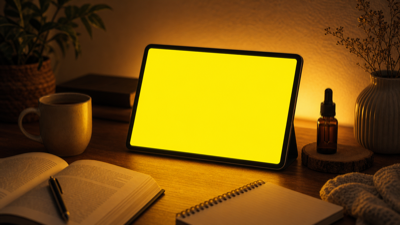
A yellow fullscreen page can also work as a warm light source, reading aid, cozy video background, or simple yellow wallpaper.
1. Warm Ambient Light
A yellow screen can act as a soft warm light source.
Example: Open a yellow screen on a tablet and place it near a wall to create a warm bedside glow at night.
2. Reading Light
Yellow light is often more comfortable than harsh white light in a dark room.
Example: If you need to read a paper note at night, open a yellow screen on your phone and lower the brightness. It can work as a gentle reading light.
3. Photography and Food Lighting
Yellow light can create a warm, cozy feeling in photos.
Example: Use a yellow screen as a small fill light when photographing bread, coffee, cake, candles, or handmade products.
4. Video Background and Warm Mood
A yellow background can create a friendly, warm, or retro visual style.
Example: A creator can use a full yellow screen behind them for a cozy YouTube video, product review, or talking-head clip.
5. Color Temperature Teaching
Yellow screen is useful for explaining warm vs cool color temperature.
Example: A photography teacher can compare a yellow screen with a blue screen to demonstrate warm light and cool light.
6. Blue Light Filter Comparison
Yellow screen can help show how blue light filters affect color.
Example: Open a yellow screen and toggle Night Light on and off. The change makes the warming effect easier to notice.
7. Document and Reading Comfort Check
Some users notice that documents look yellowish. A yellow screen can help compare whether the issue is the document background, the display, or a reading mode.
Example: If a PDF or Word document looks yellow, open a white screen, yellow screen, and normal document side by side to identify whether the device or app is changing the color.
8. Simple Yellow Wallpaper or Background
You can use a yellow screen to capture a plain yellow image for wallpaper, design, or presentation use.
Example: Take a screenshot of the yellow screen and crop it into a phone wallpaper, desktop wallpaper, or slide background.
Yellow Screen vs Other Color Screens
Different fullscreen colors reveal different display problems.
| Color Screen | Best For |
|---|---|
| Black Screen | Backlight bleeding, IPS glow, bright stuck pixels, OLED black level |
| White Screen | Dust, fingerprints, dark pixels, yellow tint, brightness uniformity |
| Red Screen | Red subpixel problems, stuck red pixels, OLED burn-in |
| Green Screen | Green subpixel problems, OLED burn-in, chroma key |
| Blue Screen | Blue subpixel problems, OLED aging, blue channel defects |
| Yellow Screen | Yellow tint, white balance, color temperature, blue light filter checks |
| Gray Screen | Banding, dirty screen effect, OLED uniformity, brightness transitions |
Yellow screen is different because it is less about one RGB subpixel and more about color temperature, warmth, white balance, and whether the screen looks too yellow or too dim.
FAQ
What is a yellow screen used for?
A yellow screen is used for checking yellow tint, color temperature, white balance, OLED uniformity, display aging, blue light filter behavior, warm lighting, and yellow background use.
Why does my screen look yellow?
Your screen may look yellow because of Night Shift, Night Light, True Tone, Eye Comfort mode, Reading Mode, blue light filters, color profile settings, panel aging, or display hardware differences.
Can a yellow screen detect dead pixels?
A yellow screen can reveal some dark marks or uneven color areas, but it is not the best color for dead pixel testing. Use black, white, red, green, blue, and gray screens together for complete pixel testing.
Is yellow screen useful for OLED testing?
Yes. Yellow can reveal tint shifts, uneven aging, green or pink patches, and burn-in marks on OLED and AMOLED displays.
Why is there a yellow border around my screen?
A yellow border is often caused by software, not the monitor itself. It may be a screen capture border, accessibility focus outline, recording indicator, OBS capture border, or app overlay.
How do I remove yellow outline on screen?
Check whether the outline appears only in certain apps, during screen recording, screen sharing, or OBS capture. Disable overlays, check accessibility settings, update capture software, and restart the app. If the outline disappears in normal use, it is not a display hardware issue.
Why does my screen appear yellowish when I open a document?
The document app may use a reading mode, eye comfort setting, paper-like background, or color profile. Also check system-wide Night Light, Night Shift, True Tone, or blue light filters.
Can I use a yellow screen as a light?
Yes. A yellow screen can be used as a warm light source for reading, photography, room ambience, or video backgrounds. Lower brightness if it feels too strong.
Is yellow screen safe for eyes?
Short use is generally fine. Yellow light is often more comfortable than bright white light in dark environments, but avoid staring at a bright screen for too long.
Final Advice
Use a yellow screen when you want to check yellow tint, warm color temperature, white balance, OLED uniformity, display aging, or blue light filter behavior. It is especially useful if your screen looks yellowish, dim, warm, or uneven.
For accurate results, turn off Night Shift, Night Light, True Tone, Eye Comfort mode, and other color filters before judging the display. Then compare yellow with white, blue, gray, black, red, and green screens to understand whether the issue is software, panel aging, or a real display defect.