Green Screen - Online Full Green Screen Tool
Use this Green Screen tool to instantly turn your display into a full green background. A green screen full screen page can be used for display testing, green subpixel inspection, stuck pixel detection, OLED burn-in checks, color uniformity testing, chroma key video production, Zoom virtual backgrounds, livestreaming, photography lighting, and visual effects.
What Can a Green Screen Detect?
A green screen is useful because it isolates the green color channel. Modern displays create images using red, green, and blue subpixels. When you show a full green screen, the green subpixels become the main focus, making some problems easier to see.
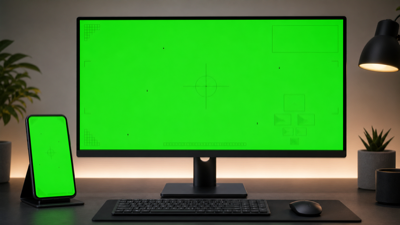
A full green screen helps isolate green subpixels, stuck green pixels, OLED aging marks, and color uniformity issues.
1. Green Subpixel Problems
Every pixel on most screens is made from red, green, and blue subpixels. A green screen mainly activates the green subpixels.
A problem may exist if:
- A tiny dot looks black on green
- A small area appears darker than the surrounding green
- Green looks weaker in one part of the screen
- A pixel flickers only on green
- A spot looks normal on white but abnormal on green
Example: If one pixel looks normal on a white screen but becomes dark on a green screen, the green subpixel may be weak, stuck, or damaged.
2. Stuck Pixel Detection
A stuck pixel may stay fixed on one color, such as red, green, blue, or white. Green screen testing can help confirm whether a suspicious pixel behaves abnormally.
A stuck green pixel may appear as:
- A bright green dot on black
- A green dot that stays visible on other colors
- A pixel that does not change correctly when switching colors
Example: If a dot remains green when you switch between black, white, red, blue, and gray, it may be a stuck green pixel.
3. OLED Burn-In and Image Retention
OLED and AMOLED displays can age unevenly. Static interface elements such as navigation bars, status bars, app icons, keyboards, or video controls may leave faint marks over time.
A green screen can reveal:
- Status bar shadows
- Navigation bar marks
- Keyboard outlines
- App interface retention
- Logo burn-in
- Uneven pixel aging
Example: On an older OLED phone, you may open a green screen and see a faint outline of the navigation bar at the bottom. That may be temporary image retention or permanent burn-in.
4. Color Uniformity Problems
Green is one of the easiest colors for human vision to evaluate because our eyes are very sensitive to green. A full green screen can make color unevenness easier to notice.
Look for:
- Dark corners
- Patchy green areas
- Uneven brightness
- Green that looks yellowish in one area
- Green that looks bluish in another area
- Color bands
- Dirty screen effect
Example: If the left side of a monitor looks deep green but the right side looks pale green, the display may have color uniformity issues.
5. Display Aging and Panel Wear
Older displays may show uneven color reproduction after years of use. Green screen testing can help reveal panel aging, subpixel wear, or uneven brightness.
Possible signs include:
- Less saturated green in certain areas
- One side of the screen looking dull
- Old UI patterns becoming visible
- Green appearing uneven during normal use
Example: A monitor used for years in an office may look fine on normal websites but show dull patches on a full green background.
Which Devices Are Best for Green Screen Testing?
A green screen test works on almost any display, but it is especially useful for the following devices.
1. OLED and AMOLED Phones
OLED and AMOLED phones are excellent candidates for green screen testing because they can develop uneven pixel aging and burn-in.
A green screen can help reveal:
- Status bar burn-in
- Navigation bar shadows
- App icon retention
- Keyboard marks
- Uneven color aging
Example: A used Android phone may look fine on photos and videos, but a green screen may show faint marks from the navigation buttons.
2. Gaming Monitors
Gaming monitors often run at high brightness and high refresh rates. A green screen can help reveal stuck pixels, color uniformity problems, and panel defects.
Useful checks include:
- Green subpixel defects
- Stuck pixels
- Uneven panel color
- Brightness inconsistency
- Color banding
Example: A new gaming monitor may look normal in games, but a green screen may reveal a small dark dot near the edge.
3. Professional Design Monitors
Designers, photographers, video editors, and color-sensitive users may use a green screen as part of a basic visual inspection.
It can help check:
- Color consistency
- Panel uniformity
- Display aging
- Uneven tint
Example: A designer comparing two monitors may use green, red, blue, white, and gray screens to see whether both displays reproduce colors consistently.
4. TVs and Large Displays
Large TVs and big monitors are more likely to show panel uniformity issues. A full green screen can help reveal dirty screen effect, uneven color, or large patchy areas.
Example: A large TV may show a slightly darker vertical band on green. If the same band appears during sports, games, or movies, it may be a real panel uniformity issue.
Green Screen Testing Workflow
Use this simple 1-5 workflow when testing your screen.
1. Enter Fullscreen Green Mode
Open the green screen tool and enter fullscreen mode. Hide browser tabs, toolbars, and window borders so the entire display becomes green.
A true green screen full screen test makes it easier to inspect the entire panel.
2. Start From Normal Viewing Distance
First, look at the screen from your normal sitting or viewing position. Do not judge only from a few centimeters away.
Check:
- Is the green color even?
- Are the corners darker?
- Are there dots or marks?
- Does one side look yellow or blue?
- Are there visible bands or patches?
3. Inspect the Screen Closely
Move closer and slowly scan the display from corner to corner.
Look for:
- Tiny dark dots
- Bright green dots
- Flickering pixels
- Ghost images
- Burn-in patterns
- Uneven green areas
If you find a suspicious spot, remember its position and test it with other colors.
4. Test Different Brightness Levels
Test once at normal brightness and once at high brightness.
Some problems are easier to see at high brightness, while OLED burn-in or image retention may appear more clearly at certain brightness levels.
Avoid staring at a very bright green screen for too long, especially in a dark room.
5. Compare With Other Colors
A green screen alone is not enough for a complete screen test. Switch between:
- Black screen
- White screen
- Red screen
- Green screen
- Blue screen
- Gray screen
If a problem appears only on green, it may be related to the green subpixel or green color channel. If it appears on every color, it may be dust, physical damage, a dead pixel, or panel uniformity.
What to Do If You Find a Problem
If You See a Dark Dot
Clean the screen first. Dust, dirt, and tiny marks can look like pixel defects.
Then test the same area on:
- White
- Red
- Green
- Blue
- Black
If the dot stays in the same place across all colors, it may be a dead pixel or physical damage.
If You See a Bright Green Dot
A bright green dot may be a stuck green pixel.
You can try:
- Switching colors several times
- Running a color cycling pixel fixer
- Leaving a pixel refresh tool running for 10-30 minutes
There is no guarantee, but some stuck pixels recover.
If You See Burn-In or Ghost Images
Test with green, red, blue, white, and gray screens. If the same UI pattern appears on several backgrounds, it may be OLED burn-in or image retention.
Temporary image retention may fade after normal use. Permanent burn-in usually remains visible.
If Green Looks Uneven
Compare the green screen with red, blue, white, and gray screens.
- If only green is uneven, the issue may be related to the green channel.
- If all colors are uneven, it may be panel uniformity, backlight, or OLED aging.
- If the issue affects real content, consider support, return, or warranty service.
Other Practical Uses of Green Screen
Green screen has many uses beyond display testing. In fact, most people know green screen because of video production.
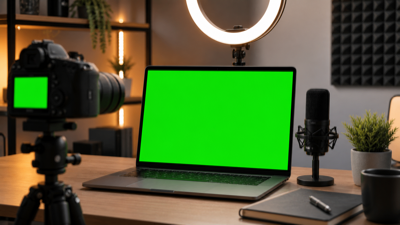
A green fullscreen page is also useful for chroma key, virtual backgrounds, livestreaming, and content creation setups.
1. Chroma Key Video Production
This is the most famous use of green screen. In video editing, the green background is removed and replaced with another image or video.
Example: A person stands in front of a green background. Editing software removes the green and replaces it with a beach, office, classroom, city, or game scene.
Common tools include:
- Adobe Premiere Pro
- Final Cut Pro
- DaVinci Resolve
- CapCut
- OBS Studio
2. Zoom, Teams, and Virtual Meetings
Green screen can improve virtual background quality in video calls.
Example: During a Zoom meeting, a green screen behind you helps the software separate you from the background more cleanly. This can make virtual offices, branded backgrounds, or blurred backgrounds look more professional.
Useful for:
- Zoom
- Microsoft Teams
- Google Meet
- Webinars
- Online teaching
- Remote interviews
3. YouTube Content Creation
Many creators use green screen effects for commentary, tutorials, reactions, and educational videos.
Example: A teacher records in front of a green screen and replaces the background with slides, diagrams, maps, or a digital classroom.
Green screen helps creators appear "inside" the content without needing a physical studio.
4. TikTok and Short-Form Video Effects
Green screen effects are very popular on TikTok, Instagram Reels, and YouTube Shorts.
Example: A creator places themselves in front of a screenshot, news article, meme, game clip, or image while reacting or explaining.
This makes green screen useful for:
- Memes
- Reactions
- Storytelling
- News commentary
- Product reviews
- Educational shorts
5. Livestreaming and Gaming Backgrounds
Streamers use green screens to remove their room background and show only the person on camera.
Example: A gaming streamer sits in front of a green screen. OBS removes the green background, so the streamer appears directly over gameplay.
This makes the stream look cleaner and more professional.
6. Photography and Colored Lighting
A full green screen can work as a simple green light source for creative photography.
Example: Open a green screen on a tablet and place it near a product to create green accent lighting. This can be useful for tech-style, cyberpunk, sci-fi, or dramatic product photos.
It will not replace professional lighting, but it can be useful for quick creative shots.
7. Visual Experiments and Color Comparison
A green screen can be used for simple visual experiments, display comparisons, or color sensitivity checks.
Example: Place two phones side by side, open the same green screen on both, and compare whether one looks more yellow, blue, dull, or uneven.
This is not a professional lab test, but it can quickly show obvious differences.
8. Simple Green Background for Design or Screenshots
A green screen can be used as a clean background for screenshots, mockups, or design references.
Example: Take a screenshot of the green screen and crop it into a green background image for a presentation, thumbnail, or placeholder graphic.
Display Inspection vs Chroma Key Use
Display inspection needs a uniform field viewed directly by your eyes; chroma key work needs an evenly lit field viewed through a camera. Those are different tests. For panel inspection, disable night mode, examine the surface from a normal viewing angle, and compare the result with red and blue. For video, inspect the camera preview for exposure clipping, reflections, fabric shadows, and green spill on the subject.
A monitor can provide a useful green background for close-ups and product shots, but its size and reflections make it less suitable than a properly lit physical backdrop for full-body recording.
FAQ
What is a green screen used for?
A green screen is used for display testing, green subpixel inspection, stuck pixel detection, OLED burn-in checks, chroma key video production, virtual backgrounds, livestreaming, and photography effects.
Can a green screen detect dead pixels?
Yes. A green screen can help identify green subpixel defects and some stuck pixels. For complete dead pixel testing, use black, white, red, green, blue, and gray screens together.
Why is green used for video effects?
Green is commonly used because it is usually different from human skin tones and is easy for cameras and editing software to separate from the subject.
Is green screen useful for OLED testing?
Yes. OLED screens can age unevenly. A green screen may reveal burn-in, image retention, UI marks, or uneven green subpixel aging.
Can green screen fix stuck pixels?
A static green screen usually does not fix stuck pixels by itself. However, switching colors or using a color cycling pixel fixer may sometimes help stuck pixels recover.
Why does my screen look uneven on green?
It may be caused by panel uniformity, subpixel aging, backlight variation, OLED burn-in, dirty screen effect, or viewing angle. Compare with other colors before judging.
Can I use this green screen for Zoom?
Yes. A green screen can help Zoom and other video call apps create cleaner virtual backgrounds, especially if your lighting is even.
Can I use a monitor as a green screen background?
Yes, but it depends on size, brightness, reflections, and camera setup. A physical green cloth is usually better for full-body shots, but a full green screen on a monitor or tablet can work for small scenes, close-ups, or creative effects.
Is green screen safe for my eyes?
Short use is generally fine. Avoid staring at a very bright green screen for a long time, especially in a dark room. Lower brightness if it feels uncomfortable.
Final Advice
Use a green screen as part of a complete screen testing and content creation toolkit. It is especially useful for green subpixel testing, stuck pixel detection, OLED burn-in checks, color uniformity inspection, chroma key effects, Zoom virtual backgrounds, YouTube videos, TikTok content, and livestreaming.
For accurate display testing, compare green with black, white, red, blue, and gray screens. For video production, make sure your lighting is even and avoid green clothing or reflective objects near the green background.